

Step 1: Connect your Web3 wallet
Kwala currently supports MetaMask for wallet connections, with support for additional Web3 wallets coming soon.This quickstart uses MetaMask to connect your wallet and get started with Kwala.
Install a Web3 wallet
If you don’t already have a wallet, download and install one. For MetaMask, visit metamask.io. You’ll need to:
- Create a new wallet or import an existing one
- Save your recovery phrase securely
- Configure it for BNB Smart Chain network (required for purchasing credits)
Navigate to the Kwala dashboard
Open the Kwala dashboard, and select My Workflows to access the workflow builder.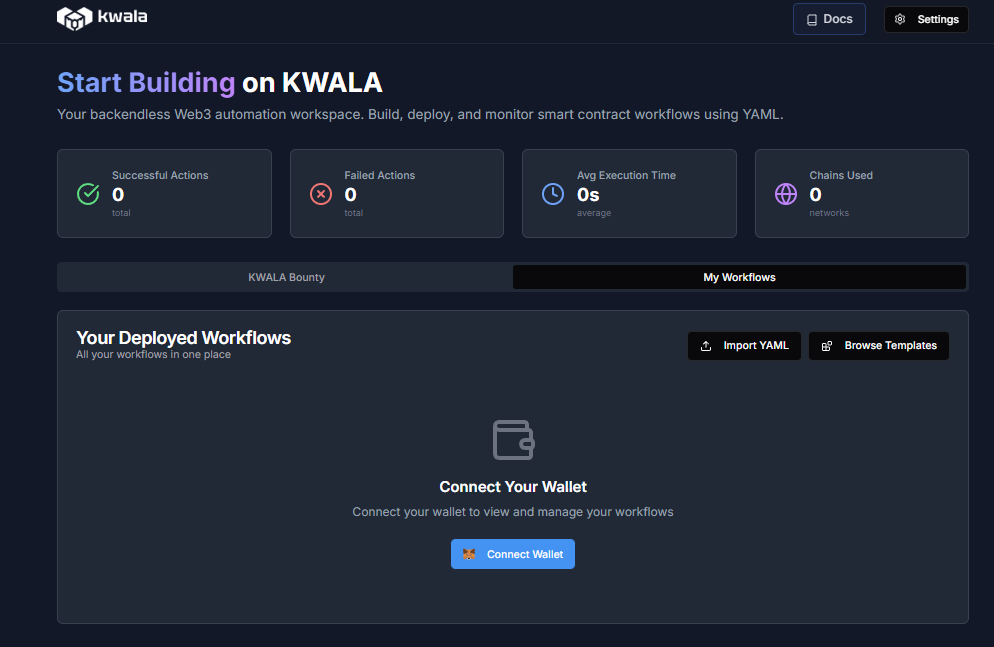
Connect your wallet
On the dashboard, select the Connect Wallet button. Choose your preferred wallet from the available options.
Authorize connection
Approve the connection request in your MetaMask wallet to link it with the Kwala network.
Step 2: Purchase Kwala credits
Kwala uses a credit-based system to execute workflows. Follow these steps to add Kwala credits to your account:Open the Kwala payments page
Navigate to payments.Kwala.network to access the payment portal.
Step 3: Build your first workflow
Once your wallet is set up and you’ve purchased credits, you’re ready to create your first Kwala workflow.If you’re building workflows that monitor smart contract events or execute contract functions, ensure your contracts are deployed. You can deploy smart contracts through Kwala or use a contract that’s already deployed on a blockchain of your choice.
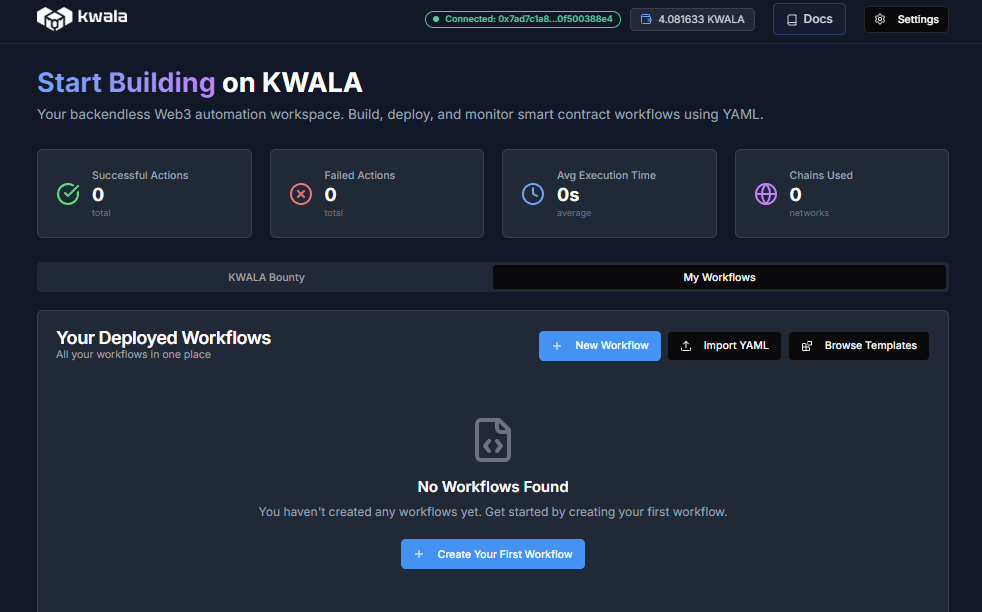
Choose a starting point
You can either:
- Start from a blank workflow
- Use a pre-built template
- Import an existing YAML file
Configure your workflow
Use the Workflow Builder to visually configure your workflow. This form-based UI lets you set up triggers, actions, and execution settings without writing YAML.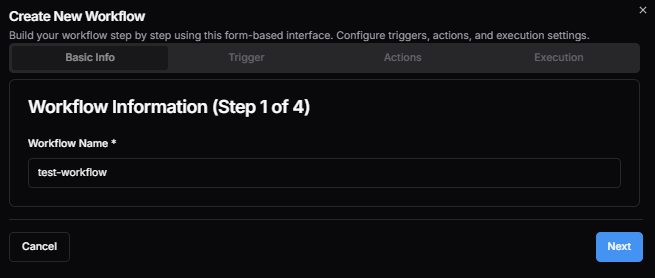
- Provide a name for your workflow
- Add trigger configuration
- Add up to 10 actions to execute when trigger conditions are met
- Configure the execution mode
Review and edit your workflow
After saving, your workflow opens in the Workflow Editor where you can view and modify the generated YAML directly.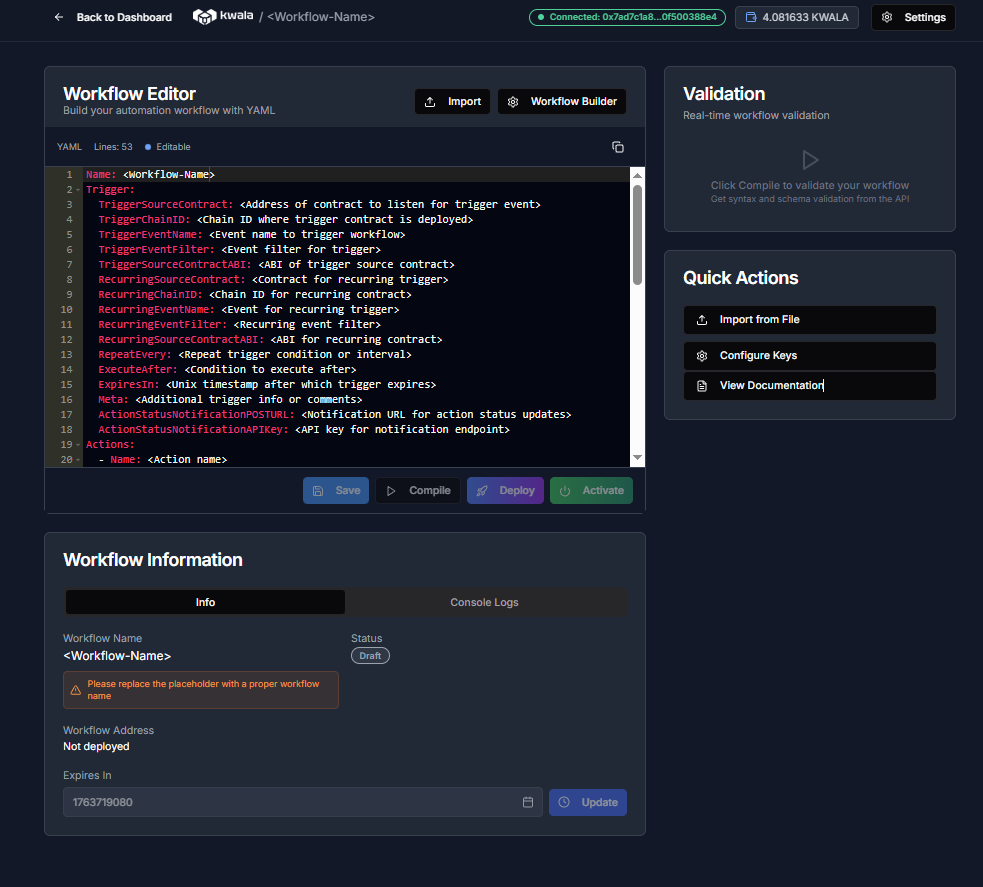
- Name: Update your workflow’s name
- Execution mode: Switch between parallel or sequential execution
- Triggers: Adjust when your workflow should run
- Actions: Modify contract calls, API endpoints, or notification settings
Test your workflow
Before you deploy the workflow, use the Compile feature to validate your configuration. This validates your workflow for syntax and schema correctness. You can use the Console Logs tab for more details about your workflow, including any validation errors.
Next steps
Create Your First Workflow
Learn how to write Kwala scripts
YAML Basics
Understanding Kwala’s YAML structure